Windows 11 26H2: Features, Known Bugs, and Deployment Guide
Microsoft has started rolling out Windows 11 26H2 as the platform’s annual feature update through a phased Windows Update deployment. Rather than replacing the operating system’s core architecture, 26H2 builds on the existing Windows 11 platform branch and focuses on incremental UI improvements, local AI integration, administration changes, accessibility, and device setup.
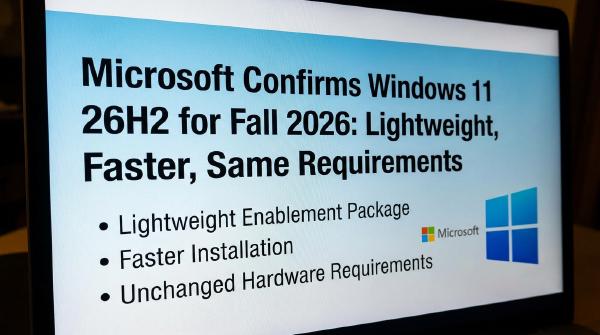
For organizations already running Windows 11 24H2 or 25H2, the upgrade is particularly notable because 26H2 is delivered through a small Enablement Package (eKB). This means the transition primarily activates functionality already present in the shared servicing branch instead of replacing large portions of the operating system.
🧠 AI and System Monitoring #
Windows 11 26H2 expands the operating system’s integration with local AI hardware and AI-assisted configuration.
Settings Agent #
The new Settings Agent uses natural-language processing to help users locate and modify system settings. Instead of manually navigating through multiple Settings pages, users can describe the configuration they want to change and allow the agent to identify the relevant option.
This approach moves Windows configuration toward intent-based interaction rather than traditional menu navigation.
Task Manager NPU Monitoring #
Task Manager gains dedicated visibility into NPU utilization, making it easier to identify workloads that are using local AI acceleration.
This is increasingly relevant on systems equipped with dedicated NPUs, where AI workloads can execute independently of the CPU and GPU.
Taskbar AI Entry Point #
Windows 11 26H2 also adds a taskbar entry point for AI-related activity, providing faster access to tools for monitoring background AI tasks.
🎨 Start Menu and Taskbar Personalization #
Microsoft is also expanding customization options across the Windows shell.
Start Menu #
The Start menu gains additional controls for:
- Adjusting menu size and layout behavior.
- Showing or hiding profile avatars.
- Showing or hiding account names.
- Controlling individual Start menu sections.
These changes give users more control over how much information and content is displayed in the Start interface.
Taskbar #
The taskbar receives additional layout options, including:
- Selecting the taskbar’s screen position.
- Enabling a more compact taskbar layout.
For multi-monitor and productivity-oriented setups, these options provide additional control over screen real estate.
🔎 Search and File Management #
Windows 11 26H2 continues Microsoft’s effort to make local search and file management more predictable.
Windows Search #
Search receives improvements to automatic indexing of commonly used folders. Microsoft is also adding controls that allow users to enable or disable Web and Microsoft Store suggestions.
This provides greater separation between local file discovery and Microsoft’s online recommendation mechanisms.
File Explorer #
File Explorer receives usability refinements, including clearer file-size presentation and other changes intended to make common file-management operations easier to interpret.
♿ Accessibility, Audio, and Camera Improvements #
Several changes in 26H2 target accessibility and peripheral compatibility.
Voice Access and Voice Isolation #
Voice Access expands language support, while new voice-isolation processing is designed to improve speech recognition and communication in noisy environments.
The combination is particularly relevant for laptops and other devices where microphone input can be affected by ambient noise.
Camera Improvements #
Windows 11 26H2 expands camera functionality with support for simultaneous camera access across multiple applications.
A basic camera compatibility mode is also included to improve interoperability with applications that do not fully support newer camera behavior.
Bluetooth Audio Sharing #
Bluetooth receives support for multi-device audio sharing, allowing compatible systems to distribute audio across multiple Bluetooth devices.
🔐 Security and Windows Hello #
Security-related changes include broader fingerprint-sensor compatibility for Windows Hello.
Microsoft is also expanding management capabilities for Smart App Control, giving administrators greater control over policies governing untrusted applications.
For managed Windows environments, these changes can be incorporated into broader application-control and endpoint-security policies.
⚠️ Windows 11 26H2 Known Issues #
Microsoft has documented several issues that can affect specific hardware and enterprise configurations.
Legacy USB Audio Class 1.0 Devices #
Some older USB Audio Class 1.0 devices may fail to initialize or produce audio.
Affected systems can report Device Manager Code 10, indicating that the device cannot start correctly. In some cases, attempting to troubleshoot the device through Windows Sound Settings can cause the Settings application to freeze or crash.
Organizations relying on legacy USB audio peripherals should therefore validate compatibility before broad deployment.
Active Directory and Credential Guard #
Enterprise environments using Active Directory with Credential Guard enabled may encounter secure domain-trust problems.
The issue is associated with default enforcement of Machine Identity Isolation, which can interfere with secure domain channels in affected configurations.
This is particularly important for organizations using centralized Windows authentication policies because the problem can affect domain sign-in rather than merely an individual desktop application.
Azure Virtual Desktop Black Screens #
Azure Virtual Desktop (AVD) session hosts using FSLogix can encounter black-screen or loading failures during sign-in.
Organizations using AVD should therefore test 26H2 against their existing FSLogix configuration before expanding deployment across production session hosts.
🔄 Why 26H2 Does Not Automatically Eliminate Existing Bugs #
One important characteristic of Windows 11 26H2 is its relationship with 24H2 and 25H2.
The three releases share the same underlying platform branch and servicing architecture. As a result, the documented USB audio, domain authentication, and AVD problems can also affect earlier versions receiving the corresponding servicing payloads.
The Enablement Package Model #
For supported 24H2 and 25H2 installations, upgrading to 26H2 primarily involves a small Enablement Package (eKB).
Rather than replacing the complete operating-system image, the package activates the 26H2 feature set and changes the reported build configuration.
This has an important deployment implication: remaining on 24H2 or 25H2 does not necessarily avoid bugs that originate in their shared servicing branch.
Administrators should therefore evaluate Microsoft’s individual mitigations and cumulative updates instead of assuming that skipping the 26H2 enablement package will eliminate every documented issue.
📦 Deployment Strategy for Windows 11 26H2 #
For standard consumer systems, a short observation period after the initial rollout can provide time for Microsoft’s monthly cumulative updates to address early deployment problems.
Enterprise environments should use a more controlled process:
- Validate hardware compatibility, particularly USB audio peripherals and biometric devices.
- Test Active Directory authentication with Credential Guard enabled.
- Validate AVD and FSLogix environments before updating production session hosts.
- Check application compatibility for software that depends on Windows shell, camera, audio, or search components.
- Deploy to a pilot group before expanding the update across the organization.
- Monitor cumulative updates and Microsoft issue status throughout the rollout.
- Expand deployment gradually after affected configurations have been validated.
Because 26H2 uses the existing platform and servicing architecture, organizations should evaluate it as part of their normal Windows servicing strategy rather than treating it as a completely new operating-system generation.
🦾 ARM OOBE Gets a New System Manifest Model #
Windows 11 26H2 also introduces changes to the Out-of-Box Experience (OOBE) for ARM-based systems.
Microsoft is providing hardware partners with version-specific System Manifests that establish a baseline configuration for device setup.
Deferring Non-Critical Updates #
For ARM-based Windows 11 devices running version 24H2 or newer, OEMs can use the manifest to distinguish critical setup requirements from updates that can safely wait until after the user reaches the desktop.
Non-critical driver and firmware updates can therefore be deferred instead of being installed during the initial OOBE process.
The goal is to reduce setup time while avoiding unnecessary delays caused by updates that are not required to make the device operational.
Critical Fixes Remain in Scope #
OOBE updates are restricted to critical block-level fixes that can:
- Prevent initial device setup.
- Cause serious problems during the first-boot experience.
- Lead to immediate device returns.
This creates a more controlled separation between device-critical setup components and routine driver or firmware maintenance.
📋 What Windows 11 26H2 Means for Administrators #
Windows 11 26H2 is primarily an incremental platform update rather than a ground-up Windows revision. Its most visible changes center on AI-assisted configuration, NPU monitoring, shell customization, search, accessibility, peripheral support, and ARM device provisioning.
The shared servicing architecture also changes how administrators should interpret the current bug list. Since 24H2, 25H2, and 26H2 share substantial platform and servicing components, simply postponing the 26H2 enablement package is not a universal workaround for issues affecting those branches.
For consumers, waiting for early cumulative updates can reduce exposure to initial rollout problems. For enterprise deployments, controlled pilot testing remains the more important safeguard—especially for Credential Guard, Active Directory, AVD/FSLogix, and legacy USB audio hardware.
The ARM OOBE manifest changes point to a broader trend as well: Microsoft and OEMs are increasingly separating the software required to make a device usable at first boot from routine post-installation maintenance. That approach can shorten setup times without removing critical fixes from the deployment path.